

[2025] Get Top-Rated SAP C-THR86-2405 Exam Dumps Now
Passing Key To Getting C-THR86-2405 Certified Exam Engine PDF
NEW QUESTION # 35
Your EC-integrated client has employees in several countries. While all the countries are planned on the same worksheet at the same time, there are slight differences in the Effective Dates of the new salaries when they are published back to EC.
How can this requirement be met through configuration?
- A. Create a lookup table that contains the different dates that uses country as an input.
*Create a custom date column that reads from the lookup table based on employee country.
*Map the column ID of the custom date column to the "start-date" of the pay component in the XML. - B. Enter the effective date for the largest country in the Employee Central Settings screen.
*Publish the results of the planning for all countries.
*Manually modify the effective dates of the resulting EC data for the smaller countries. - C. Create a lookup table that contains the different dates that uses country as an input.
*Map the lookup table name to the "start-date" of the pay component in the XML. - D. On the Employee Central Settings screen in Compensation Home, set the Effective Date to be that of the largest country.
*Use the Publish Selected Employees in Employee Central to publish the data for this country.
*Manually modify the effective date to be that of the next country publish the data for them. Repeat for all countries.
Answer: A
Explanation:
To meet the requirement of publishing different effective dates for each country in an SAP SuccessFactors Compensation worksheet:
* First, create a lookup table that specifies the effective date for each country.
* Then, set up a custom date column in the compensation template that retrieves the effective date from this lookup table based on the employee's country.
* Finally, map this custom date column in the XML template to thestart-dateof the pay component, ensuring each country has the correct effective date when the compensation data is sent back to Employee Central. This method allows for automation of country-specific effective dates, avoiding manual adjustments and ensuring consistency.References: SAP SuccessFactors Compensation Integration with Employee Central Guide - Lookup Tables and Effective Date Configuration.
NEW QUESTION # 36
You set up a merit guideline rule based on the performance rating and country. You configure guideline formulas as shown in the screenshot. See image below.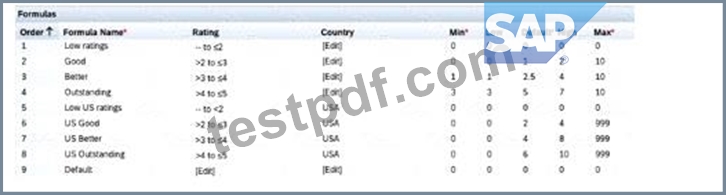
An employee in the USA has a rating of 4. What would be their default merit increase?
- A. 0.04
- B. 0.01
- C. 0.02
- D. 0
Answer: C
NEW QUESTION # 37
Your EC-intagrated client has employees in several countries While all the countries are planned on the same worksheet at the same time there are slight differences in the Effective Dates of the new salaries when they are published back to EC.How can this requirement be met through configuration?
- A. Create a lookup table that contains the different dates that uses country as an input*Map the lookup table name to the start-date' of the pay component in the XML
- B. Enter the effective date for the largest country in the Employee Central Settings screen*Publish the results of the planning for all countries*Manually modify the effective dates of the resulting EC data for the smaller countries
- C. Create a lookup table that contains the different dates that uses country as an input.*Create a custom date column that reads from the lookup table based on employee country*Map the column ID of the custom date column to the 'start-date' of the pay component in the XML
- D. On the Employee Central Settings screen in Compensation Home set the Effective Date to be that of the largest country.*Use the Publish Selected Employees in Employee Central to publ<sh the data for this country*Manually modify the effective date to be that of the next country and publish the data for them Repeat for all countries
Answer: C
NEW QUESTION # 38
Which of the following permissions are required to be able to use Executive Review offline edit to download, modify, upload bulk changes? Note: There are 3 correct answers to this question.
- A. The user needs the Ad Hoc Reports for the Compensation Planning domain permission.
- B. The user needs the Executive Review - Export permission.
- C. The user needs the Executive Review - Edit permission.
- D. The user needs the Executive Review - Import permission.
- E. The user needs the Executive Review - Mass Action permission.
Answer: B,C,D
Explanation:
To use theExecutive Review Offline Editfeature in SAP SuccessFactors Compensation, certain permissions are required for downloading data, making bulk changes offline, and re-uploading those changes.
* Executive Review - Export Permission
* Option A: This permission allows users to export the compensation data from the Executive Review page to a downloadable format (such as Excel). This is essential for performing offline edits.
* Executive Review - Import Permission
* Option B: This permission enables users to import or re-upload the edited data back into the system after making bulk changes offline. It's critical to ensure these changes are successfully integrated into the worksheet.
* Executive Review - Edit Permission
* Option D: This permission allows users to edit entries within the Executive Review interface. It is necessary for making adjustments to compensation data.
* Why Other Options Are Incorrect
* Option C (Executive Review - Mass Action permission) is unrelated to offline editing; it pertains to actions like applying mass updates within the online Executive Review.
* Option E (Ad Hoc Reports for the Compensation Planning domain) is for reporting rather than permissions directly related to offline editing capabilities.
* Reference Documentation
* SAP SuccessFactors Compensation Guide onExecutive Review PermissionsandOffline Edit Requirement
NEW QUESTION # 39
When would you run the Update All Worksheets function? Note: There are 3 correct answers to this question.
- A. When an administrator changes the layout of the compensation plan template to add a new column
- B. When there has been a change to an eligibility rule
- C. When there has been an update to a lookup table
- D. When a performance rating is updated
- E. When an administrator makes a change to Field Based Permissions
Answer: B,C,D
Explanation:
The "Update All Worksheets" function in SuccessFactors Compensation is essential for synchronizing employee data changes across worksheets. It's used in specific scenarios:
* Update to a Lookup Table (Option A):
* Lookup tables are used for values such as exchange rates, merit guidelines, or budget percentages. If these values are updated, running "Update All Worksheets" ensures that the revised values apply across all worksheets.
* Performance Rating Update (Option B):
* If an employee's performance rating is modified in Employee Central or Performance Management, the update function ensures that the latest rating is reflected on the Compensation worksheet, which could affect merit or bonus calculations.
* Eligibility Rule Change (Option E):
* Changes in eligibility criteria, such as grade level or employment status, necessitate running
"Update All Worksheets" to ensure only eligible employees remain active on the worksheet, with any ineligible ones becoming grayed out or removed based on rule settings.
Excluded Options:
* Layout Change in Template (Option C): Changes to layout don't require an update to all worksheets as this doesn't affect employee data or calculations.
* Field Based Permissions (Option D): Field-based permission changes are applied immediately and don't require an update to worksheets.
NEW QUESTION # 40
What happens to compensation forms when the currency conversion table is updated during the planning period?
- A. In-progress forms are NOT affected
- B. In-progress forms are only affected when Update All Worksheets is run
- C. Only completed forms ate affected
- D. Change is dynamic to in-progress forms
Answer: D
NEW QUESTION # 41
What action is required to enable Employee Central integration for a template?
- A. Provide an effective date
- B. Update pay guide format
- C. Reload guidelines
- D. Enable field-based permissions
Answer: A
NEW QUESTION # 42
What happens to compensation forms when the currency conversion table is updated during the planning period?
- A. Change is dynamic to in-progress forms.
- B. In-progress forms are only affected when Update All Worksheets is run.
- C. In-progress forms are NOT affected.
- D. Only completed forms are affected.
Answer: A
Explanation:
When the currency conversion table is updated during a planning period, in-progress forms reflect these changes dynamically.
* Option C: "Change is dynamic to in-progress forms."
* In SAP SuccessFactors Compensation, currency conversion updates affect in-progress worksheets immediately and dynamically without the need for manual updates. This feature ensures accurate currency data throughout the planning period.
NEW QUESTION # 43
You configured merit guidelines as shown in the screenshot.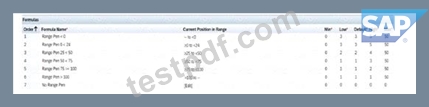
If an employee has a range penetration of 24% what would be the low to high guideline that would appear in the merit guideline column in the compensation worksheet?
- A. O 2%-4%
- B. 0%-0%
- C. O 1%-2%
- D. 3%-5%
Answer: B
NEW QUESTION # 44
Which report can aggregate compensation details from multiple plans?Note There are 2 correct answers to this question
- A. Executive Review
- B. Aggregate export
- C. Ad Hoc report
- D. Online Report Designer
Answer: A,B
NEW QUESTION # 45
Your client is using Salary Proration importing the Proration percentage rather than using Start End Dates. An employee is imported with a 50% proration. The merit guideline table for this employee would normally be 4-
6%.
The planner enters a $1,000 merit increase, which is within the displayed guidelines. Which of the following scenarios is accurate?
- A. Guideline is displayed as 4-6%
*Total Increase is $500 - B. Guideline is displayed as 2-3%
*Total Increase is $1,000 - C. Guideline is displayed as 4-6%
*Total Increase is $1,000 - D. Guideline is displayed as 2-3%
*Total Increase is $500
Answer: D
Explanation:
WhenSalary Prorationis used with a proration percentage (50% in this case) rather than dates, it affects both the guideline range and the total increase.
* Proration Impact on Guideline Range and Total Increase
* Guideline Adjustment: Since the proration is set to 50%, the guideline range (normally 4-6%) is adjusted by 50%, resulting in a prorated guideline of 2-3%.
* Total Increase Calculation: When the planner enters a $1,000 merit increase, the proration factor is applied, resulting in a final increase of $500 (50% of $1,000).
* Why Other Options Are Incorrect
* Options A and Bshow the original guideline (4-6%), which does not reflect the proration adjustment.
* Option Dincorrectly calculates the total increase without applying the 50% proration.
* Reference Documentation
* SAP SuccessFactors Compensation Guide onSalary Proration and Merit Guidelines.
NEW QUESTION # 46
You configured merit guidelines as shown in the screenshot.
If an employee has a range penetration of 24% what would be the low to high guideline that would appear in the merit guideline column in the compensation worksheet?
- A. 1%-2%
- B. 0%-0%
- C. 2%-4%
- D. 3%-5%
Answer: C
NEW QUESTION # 47
In an EC-integrated implementation, which of the following EC elements can be used to map fields? Note:
There are 3 correct answers to this question.
- A. Time Off
- B. Pay Components
- C. MDF Objects
- D. Background Elements
- E. Biographical Information
Answer: B,C,E
Explanation:
In SAP SuccessFactors Compensation integrated with Employee Central, mapping data fields between Employee Central and Compensation templates is essential. The following elements can be mapped:
* Biographical Information (Option A):
* Biographical data such as date of birth, gender, and other demographic information can be mapped from Employee Central to Compensation worksheets. This data can be used to filter or personalize employee details on the worksheet.
* MDF Objects (Option C):
* Metadata Framework (MDF) Objects allow custom object configuration in Employee Central, enabling businesses to define custom fields or data structures. These can then be mapped to fields in Compensation templates, providing flexibility to bring in custom attributes like competencies, certifications, or additional criteria.
* Pay Components (Option D):
* Pay components, such as base salary, allowances, and bonuses, are fundamental elements in Employee Central and can be mapped directly to compensation planning fields on the worksheet.
This mapping ensures accurate financial data and compensation planning alignment with Employee Central records.
Excluded Options:
* Time Off (Option B): Time Off data is not typically mapped directly to Compensation worksheets as it primarily manages leave and absence.
* Background Elements (Option E): Background elements generally pertain to employee profiles (e.g., previous work experience or education) and are not used in direct mapping to Compensation worksheets.
NEW QUESTION # 48
A customer wants to display a block of text on the compensation statement only if the merit increase percentage is greater than 10%. How would you proceed?
- A. Use conditional logic in the statement to only display the paragraph if merit is greater than 10.
- B. Duplicate the standard merit field select the Show percent only radio button. Add this field to the statement template use it for the conditional logic.
- C. Configure an adjustment field to duplicate the merit field select the Show percent only radio button.Add this field to the statement template use it for the conditional logic.
- D. Configure a new percent field with a formula within the compensation template add this field to the statement template. Use this field in the conditional logic.
Answer: D
NEW QUESTION # 49
For which customer requirement do you need to develop a custom statement?
- A. Pie graph showing compensation element attribution
- B. Different statements per employee group
- C. Mix of data from compensation and variable pay
- D. Field visibility is conditional on amount
Answer: A
NEW QUESTION # 50
Your client wishes to limit new employee salaries so that no employee can exceed 125% compa- ratio. They do not award lump sums.
How can you configure the worksheet to meet this requirement? Note: There are 2 correct answers to this question.
- A. Create a standard validation of type "splitOrDisallow" action "exceed" with the Threshold at 125.
- B. Create a custom validation of type Error to ensure that the column curRatio is less than 125.
- C. Create a standard validation of type "disallow" action "exceed" with the Threshold at 125.
- D. Create a custom validation of type Error to ensure that the column compaRatio is less than 125.
Answer: C,D
NEW QUESTION # 51
Your client would like a specific population of inactive employees to be included in the worksheet. Which combination of settings allows you to achieve this?
- A. Select "All employees are eligible" under Eligibility Settings, update eligibility rules to INCLUDE the desired inactive employees.
- B. Select "Including Inactive Users" when defining the Method of Planner, select "All employees are eligible" under Eligibility Settings, update eligibility rules to INCLUDE the desired inactive employees.
- C. Select "Including Inactive Users when defining the Method of Planner, select "All employees are eligible" under Eligibility Settings, update eligibility rules to EXCLUDE the undesired inactive employees.
- D. Select "All employees are eligible" under Eligibility Settings, update eligibility rules to EXCLUDE the desired inactive employees.
Answer: B
Explanation:
To include a specific population of inactive employees in the worksheet, select settings that specify inclusion criteria for inactive users and adjust eligibility accordingly.
* Option C: "Select 'Including Inactive Users' when defining the Method of Planner, select 'All employees are eligible' under Eligibility Settings, update eligibility rules to INCLUDE the desired inactive employees."
* By enabling the"Including Inactive Users"option, planners can ensure that inactive employees are part of the worksheet. Setting "All employees are eligible" provides a base eligibility, while the eligibility rules can then specificallyinclude only the desired inactive employeesbased on criteria set in the rule.
NEW QUESTION # 52
Your customer wants to include information on the planning form that is visible and read-only to planners, but may be edited by the Reward Team. How can you achieve this?
- A. Configure a custom field and set the field to be reportable
- B. Configure a custom field and set the field to read-only
- C. Configure a custom field and use field-based permissions to set the field to be hidden from planners
- D. Configure a custom field and use field based permissions to set the field to be non-editable to planners
Answer: C
NEW QUESTION # 53
......
C-THR86-2405 exam questions for practice in 2025 Updated 82 Questions: https://pass4sure.testpdf.com/C-THR86-2405-practice-test.html
